Ear Training Made for Drummers
Strengthen your ability to hear kick and snare patterns and groove structures. Train your ear to pick out rhythmic shapes, syncopation, ghost notes and accents in your favorite songs.

Get the most out of your drum practice

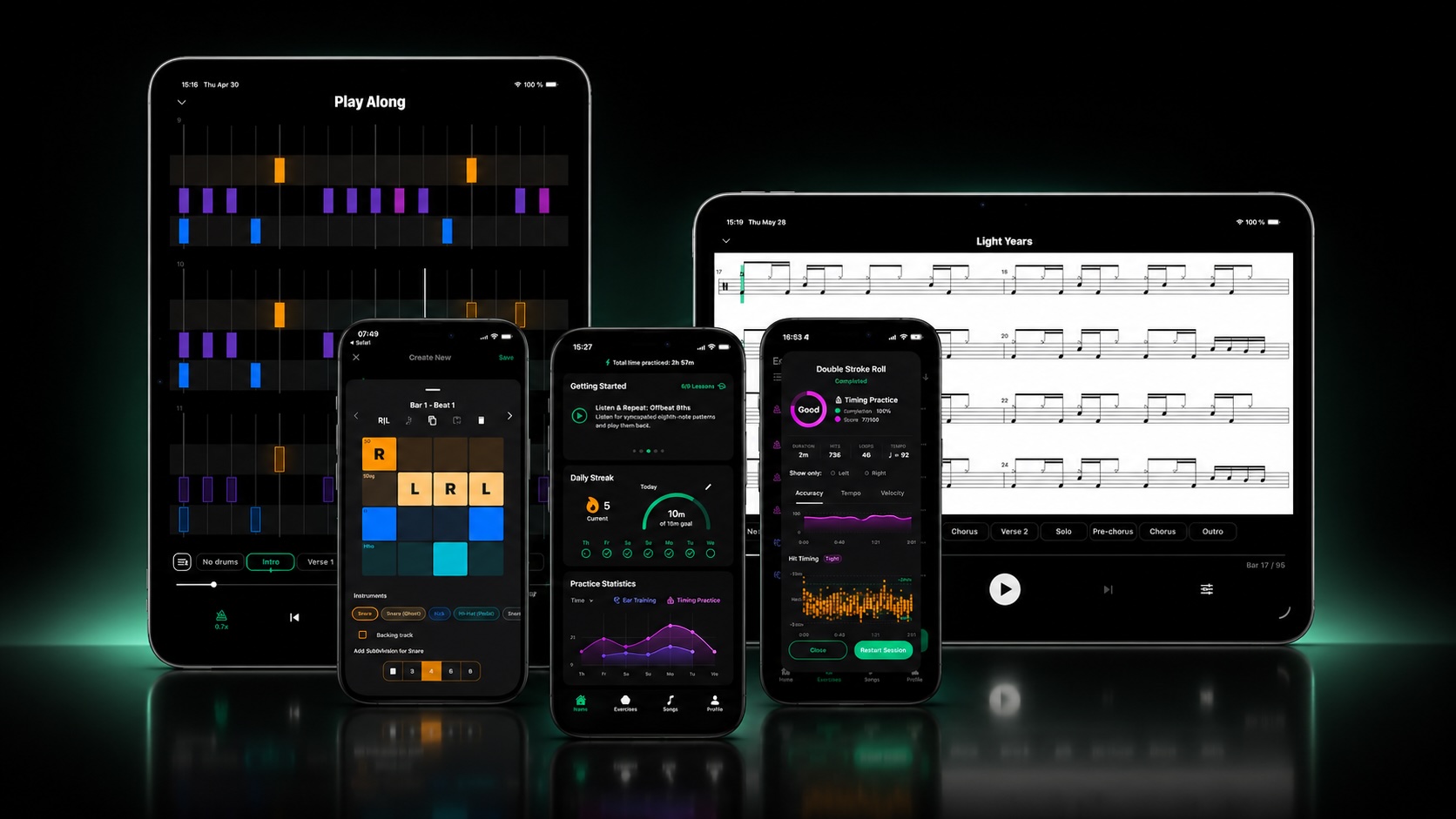
EarDrum is a drum practice studio for iPhone, iPad, and Mac that helps drummers — and any musician who cares about rhythm — train the skills that truly matter: accurate timing, a strong internal pulse, and the ability to learn beats and songs entirely by ear. With intelligent feedback, well-designed exercises, and custom practice tools, you'll build the kind of timing, feel, and confidence that shows up in every groove you play.
Strengthen your ability to hear kick and snare patterns and groove structures. Train your ear to pick out rhythmic shapes, syncopation, ghost notes and accents in your favorite songs.
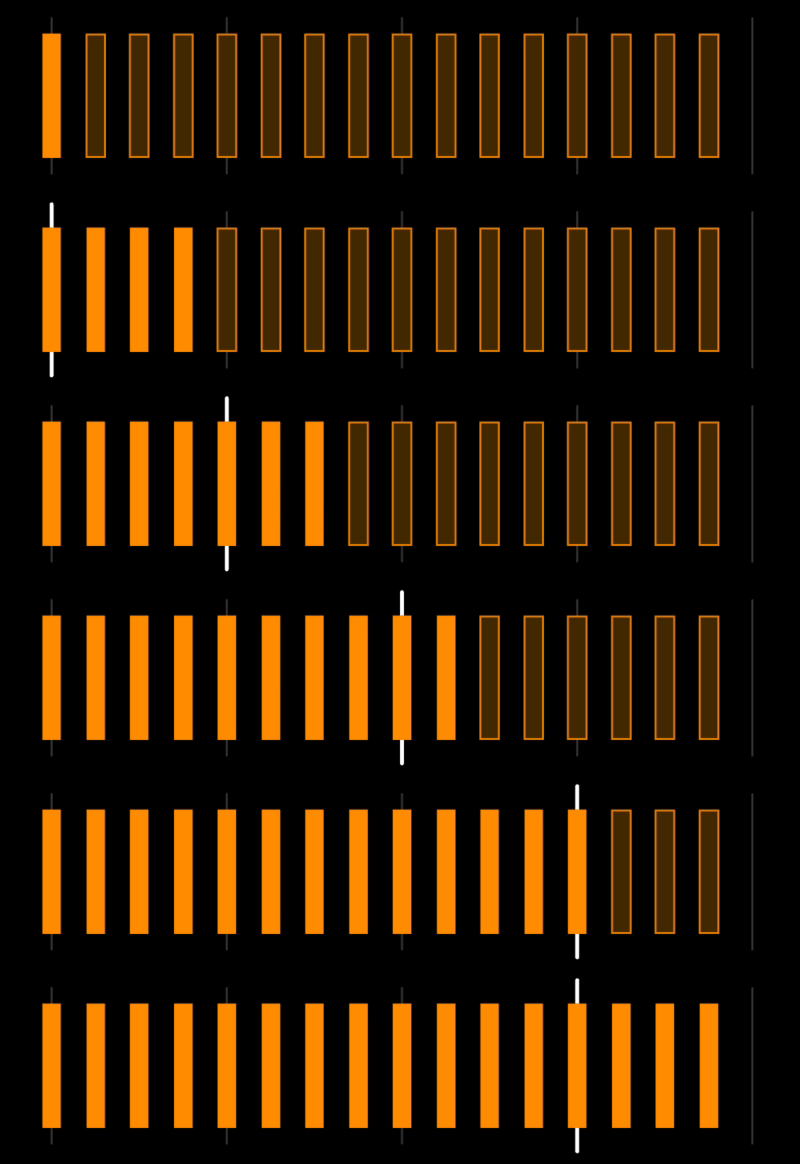
Improve your timing with well-crafted exercises that focus on subdivisions, permutations, and different accent placements.
Have a MIDI file of your favorite track? Import it into EarDrum and instantly get a playable, interactive drum part. Loop sections, slow them down, isolate layers, get feedback on every hit, and perfect every bar.
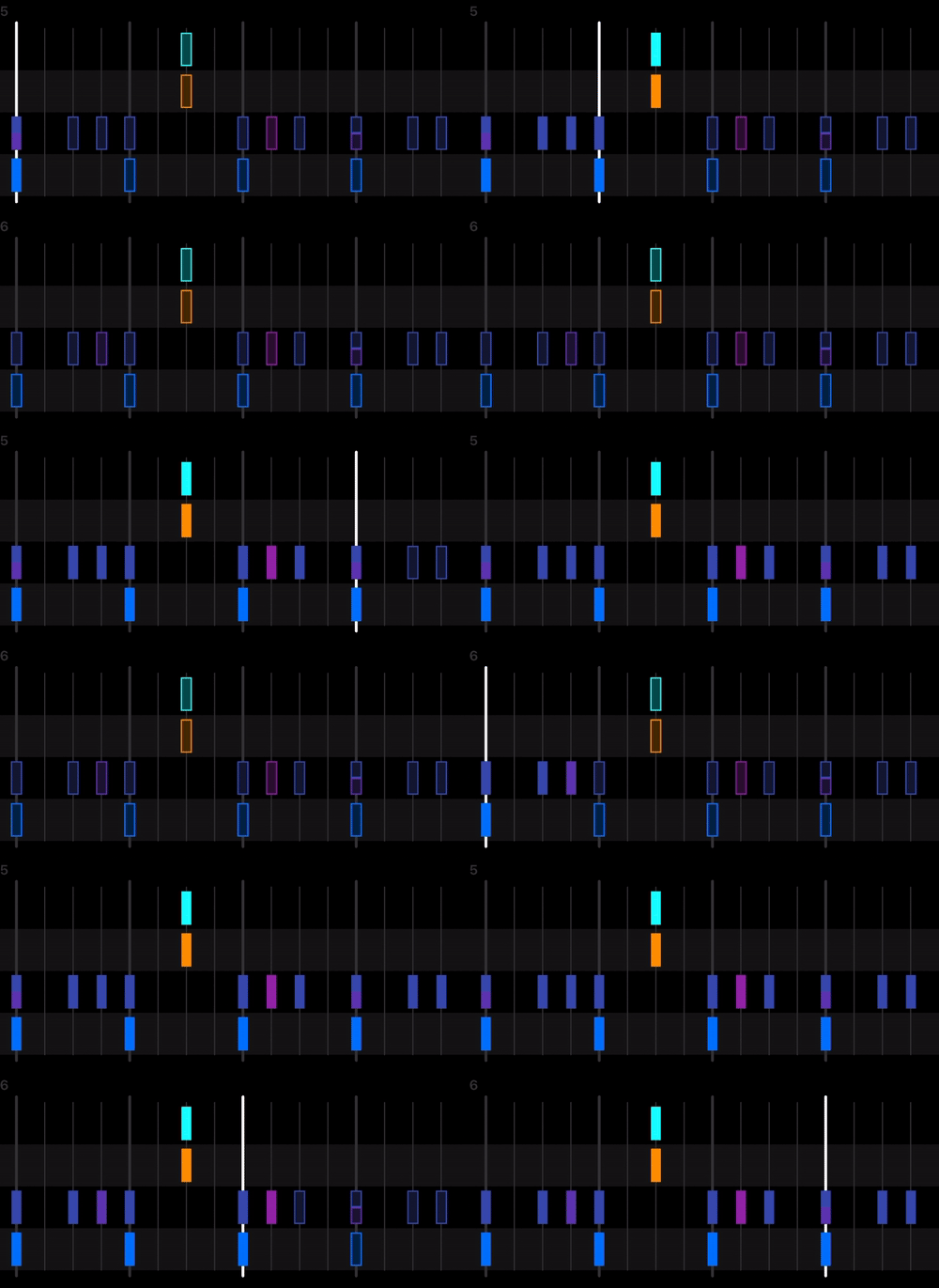
Stop depending on YouTube tutorials or sheet music. EarDrum trains the listening skills professional drummers use to figure out grooves instantly.
Whether you're on your electronic kit, on a practice pad, or using just your fingers in Tap Mode, EarDrum gives you instant feedback so you can keep improving at home, in the studio, or on the go.
For drummers who want to build their own practice routines, EarDrum lets you create custom exercises and patterns for both timing and ear-training.
EarDrum gives you listening and timing scores and keeps a log of your practice, so you can see your progress, stay consistent, and keep growing with an ultimate drumming practice tool.
You can share your exercises with others. If you're a drum teacher, you can create custom exercises for your students to practice at home.
A step-by-step method for figuring out drum parts by ear — find the pulse, map the kick and snare, layer in the details, and train the listening skill behind it all.
Read the guide →Six exercises that build a real internal clock, plus why measured feedback on rushing and dragging is the fastest way past a timing plateau.
Read the guide →Turn any song into an interactive drum play-along — import MIDI files or Clone Hero charts, add drumless backing tracks, loop sections, and get feedback on every hit.
Read the guide →No. EarDrum works with whatever you have: an electronic drum kit connected over USB or Bluetooth MIDI, a practice pad using your device's built-in microphone, a MIDI controller, or just your fingers on the on-screen virtual drums in Tap Mode.
Every input method gets the same real-time feedback on timing and accuracy, so you can practice at home, in the studio, or on the go.
EarDrum is free to download on the App Store and includes introductory exercises and the Getting Started course at no cost.
A one-time lifetime unlock adds MIDI song import, the custom exercise builder, and the full exercise library. An optional Pro subscription adds cloud-based features like exercise sharing on top of that.
Timing exercises are designed to strengthen your internal clock. The goal is to help you place notes accurately in time, stay steady through the bar, and feel subdivisions clearly.
They also help improve speed, endurance, coordination, and sticking control, and can include classical rudiments, groove-based patterns, and limb-independence exercises.
Ear training exercises are designed to improve your ability to hear, recognize, and reproduce rhythms, and are especially useful for learning songs by ear.
Instead of only repeating one known pattern, ear training uses a call-and-response approach. You hear a rhythm first, then respond by playing it back. The exercises usually contain multiple pattern variations for each beat, so the app can choose between several possible versions, introducing an element of randomness and making the exercise less predictable.
This structure helps you move beyond memorization. Rather than relying on a fixed pattern, you learn to listen carefully, identify what you heard, and react musically in real time.
Creating an exercise starts with choosing the basic structure of the pattern, then filling in each beat.
The time signature sets how many beats there are in each bar. For example, in 4/4 you get four beats per bar, and each beat can be edited separately.
Use the Length control to choose how many bars your exercise should have. You can create anything from a short one-bar idea to a longer multi-bar phrase.
Under Beats, tap any beat to open the editor for that position in the bar. This is where you choose instruments and build the rhythm for that beat.
Inside the beat editor, select the instrument you want to edit, such as kick, snare, or another drum sound. Each instrument can have its own rhythm on the same beat.
For the selected instrument, add a subdivision pattern such as 3, 4, 6, or 8. This determines how that beat is divided internally and gives you the grid you will place notes on.
Tap the subdivision cells to place or remove hits.
The Backing track checkbox marks the selected instrument as accompaniment rather than the part you are expected to reproduce. This is useful when you want part of the groove to keep playing underneath while you focus on hearing or performing the main rhythm.
You can move from beat to beat, copy and paste beats, or clear them as needed. Keep building until every beat in every bar has at least one rhythm pattern.
Once the exercise is complete, save it or start the session directly.
The app supports any standard MIDI file that contains drum or rhythm information on channel 10.
You can download MIDI files from free or paid websites, including sites like Songsterr. You can also export MIDI from your DAW or convert a Guitar Pro file. EarDrum also imports Clone Hero song packages — community charts that bundle the drum chart, backing track stems, and album art in one zip.
The app works well with standard-compliant MIDI files from websites like Songsterr, or files exported from a DAW with the drum track on channel 10.
If something isn't loading right, feel free to send me the file by email and I'll help you out.
The paid version unlocks MIDI song import, the exercise builder, and the full exercise library.
It's designed for learners who want to practice with their own songs, build focused exercises, and get deeper feedback on their progress.
Pro includes everything in the lifetime unlock — MIDI song import, the exercise builder, and the full exercise library — plus features that require cloud infrastructure, like exercise sharing and the upcoming cloud sync.
It also directly supports continued development of the app, including new features, more exercises, and better practice tools. EarDrum is built independently, and Pro helps make ongoing improvements possible.
You can view the public roadmap to see what is planned, what is being considered, and what is already in progress.
The roadmap is open to your feedback too: you can suggest ideas, vote on feature requests, and help shape what gets built next.